Did you know we regularly update our resources? Sometimes we correct errors, but most of the time we use the feedback from teachers to add and improve our lessons. This means you also get access to all these changes, but only if you know how to access your updates. This post walks you through creating a Teachers Pay Teachers (TpT) account, opening it, and finding and downloading your resources, including updated ones. If you’ve bought Brain Ninjas resources from TpT, these steps apply to you.
Know Where You Made Your Purchase
We sell our resources in our BN Shop through Shopify and on TpT. Most of the resources are available on both sites, but they are not interchangeable. You will need to know which store you made your purchase in order to access any updates.
If you made your purchase in our BN Shop, check out this post instead.
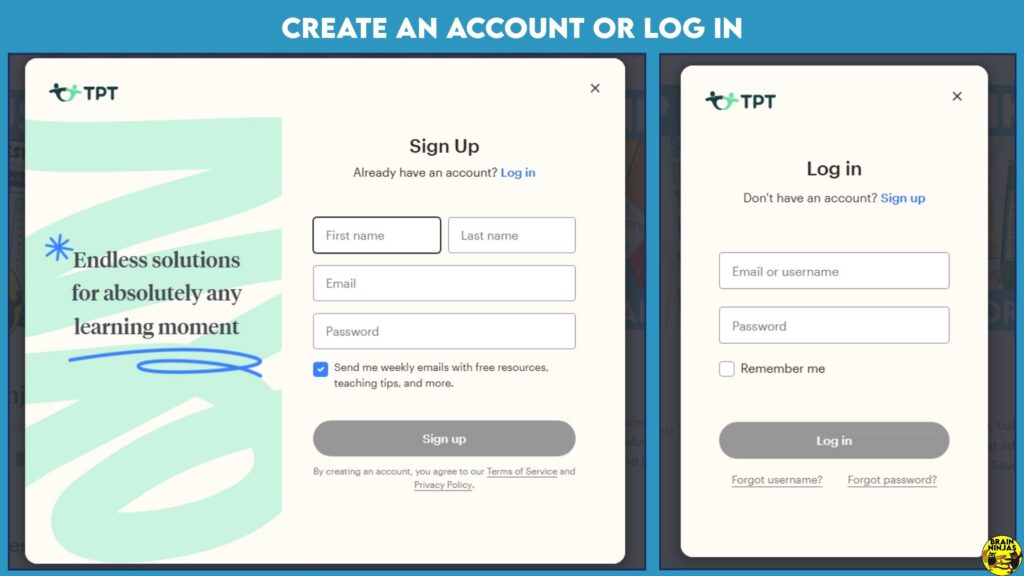
How to Create an Account for Teachers Pay Teachers (or Log In)
You need a free TpT account to have access to updates. If you use a guest account, you will not have access to updates.
To Sign Up for a Free Account
- Go to Teachers Pay Teachers: https://www.teacherspayteachers.com/
- Click the Sign Up option at the top of the page.
- Choose to create a new account and enter your name, email address, and a password. You may also see options to sign up with another account, such as Google.
- Follow the prompts to finish setting up your account.
To Log In
- Go to Teachers Pay Teachers: https://www.teacherspayteachers.com/
- Follow the prompts in the Log In window.
- We recommend setting up two-factor authentication (under Account Settings) to help protect your account.
To browse Brain Ninjas resources, visit our TpT store.
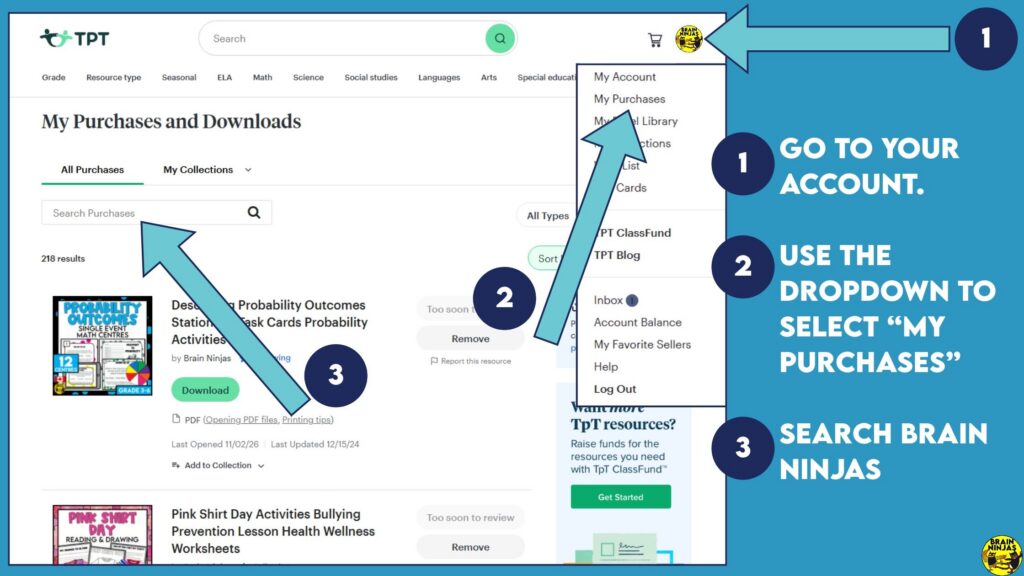
How to Find and Download Your Resources in Your Account
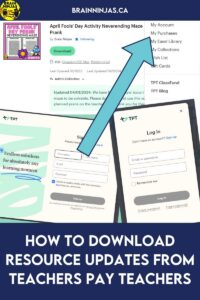
- Look in the top right corner of the main screen for a circle, usually showing your initials.
- Click the circle, and a drop-down menu will appear.
- Click My Purchases. This opens your library, where you’ll see all the resources you’ve bought on TpT.
Check to See if a Resource Has Been Updated
Unfortunately, Teachers Pay Teachers has no way for sellers to notify buyers when a resource is updated. We send Notes to Followers in our account, but unless you go searching for updates, there is no notification. We have tried to solve that by sending weekly update emails. Sign up for our email list if you’d like update emails.
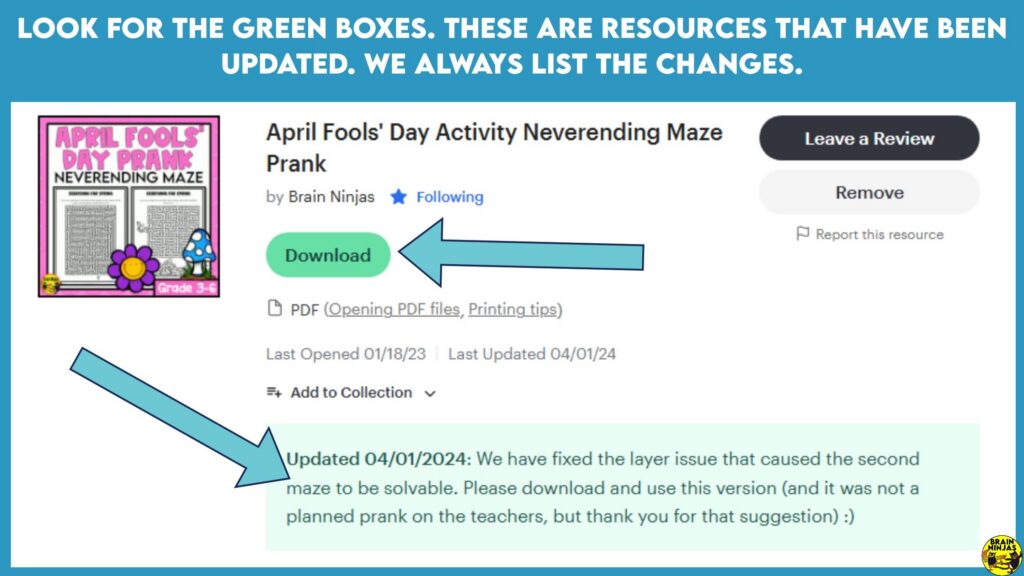
Each resource in your My Purchases library shows two dates at the bottom: when you last opened it and when the seller last updated it.
- No update: If the dates show that the resource hasn’t changed since you bought it (for example, not updated since 2020), you already have the latest version.
- Update available: If we have made changes, a green box appears at the bottom of the resource. It shows the date of the update and tells you a new link is available. TpT highlights this box when you haven’t downloaded the resource since it was updated.
If you see the green box, you can download the new version right away.
Download Your TpT Updates
There are two easy ways to download an updated resource:
- Use the Download button. Click Download next to the resource in your My Purchases library.
- Open the resource page. Click the resource name to go to its page, then click the download link there.
That’s it! Now you can create your account, check for updates, and download the newest version of your Brain Ninjas resources anytime.
One of the best ways to keep track of updates is to get signed up for our email list. We send resource update emails on Fridays to help you plan the week ahead. Sign up at the bottom of this page. If you’re already on the list, watch for surveys in our emails or send us an email so we can get you on the right list.
Our ninjas on our email list also get emails about new resources, access to our free resource library and we even send freebies and gift cards along the way.
Frequently Asked Questions About TpT Updates
Do I need a TpT account to get updates?
Yes. You need a free TpT account. If you checked out as a guest, you won’t see updates. Create a free account with the same email you used for your purchase, then check My Purchases.
Do I have to pay for updates?
No. Updates are free for resources you have already purchased. You only need to download the new version.
Will the new download replace my old file?
No. The download is a fresh copy, and your old file stays where you saved it. Rename or delete the old version so you don’t mix them up.
Why don’t I see the green update box?
There are three common reasons. The resource may not have been updated. You may have already downloaded the latest version. Or you may have bought it in our BN Shop instead of on TpT. If so, check out our post on downloading BN Shop resource updates.



Leave a Reply